

Every business runs on documents — invoices, bank statements, receipts, purchase orders and financial reports. And for millions of companies, those documents already live in one place: Google Drive. Yet most finance professionals still spend hours every week downloading PDFs, copying numbers into spreadsheets and manually entering financial data. It's slow, expensive and error-prone. This guide explains how Google Drive invoice automation works, why companies are adopting it, and how AI is quietly transforming financial operations.
The Hidden Cost of Manual Invoice Processing
Most finance teams underestimate the true cost of manual document work. A typical invoice workflow looks deceptively simple: an invoice arrives, an employee downloads the PDF, the data is copied by hand, a spreadsheet is updated, the accounting software is updated, and finally the document is archived. For a single invoice this feels manageable. Multiply it by hundreds of invoices a month and the workflow becomes one of the most expensive recurring tasks in the entire finance function.
The cost is not only time. Manual processing introduces data-entry errors, duplicate entries, delayed reporting, missed payments and inconsistent bookkeeping. A single transposed digit in a VAT amount can trigger a reconciliation failure or an incorrect tax filing weeks later. When the people doing this work are skilled accountants, the opportunity cost is even higher — every hour spent retyping numbers is an hour not spent on analysis, advisory work or growth.
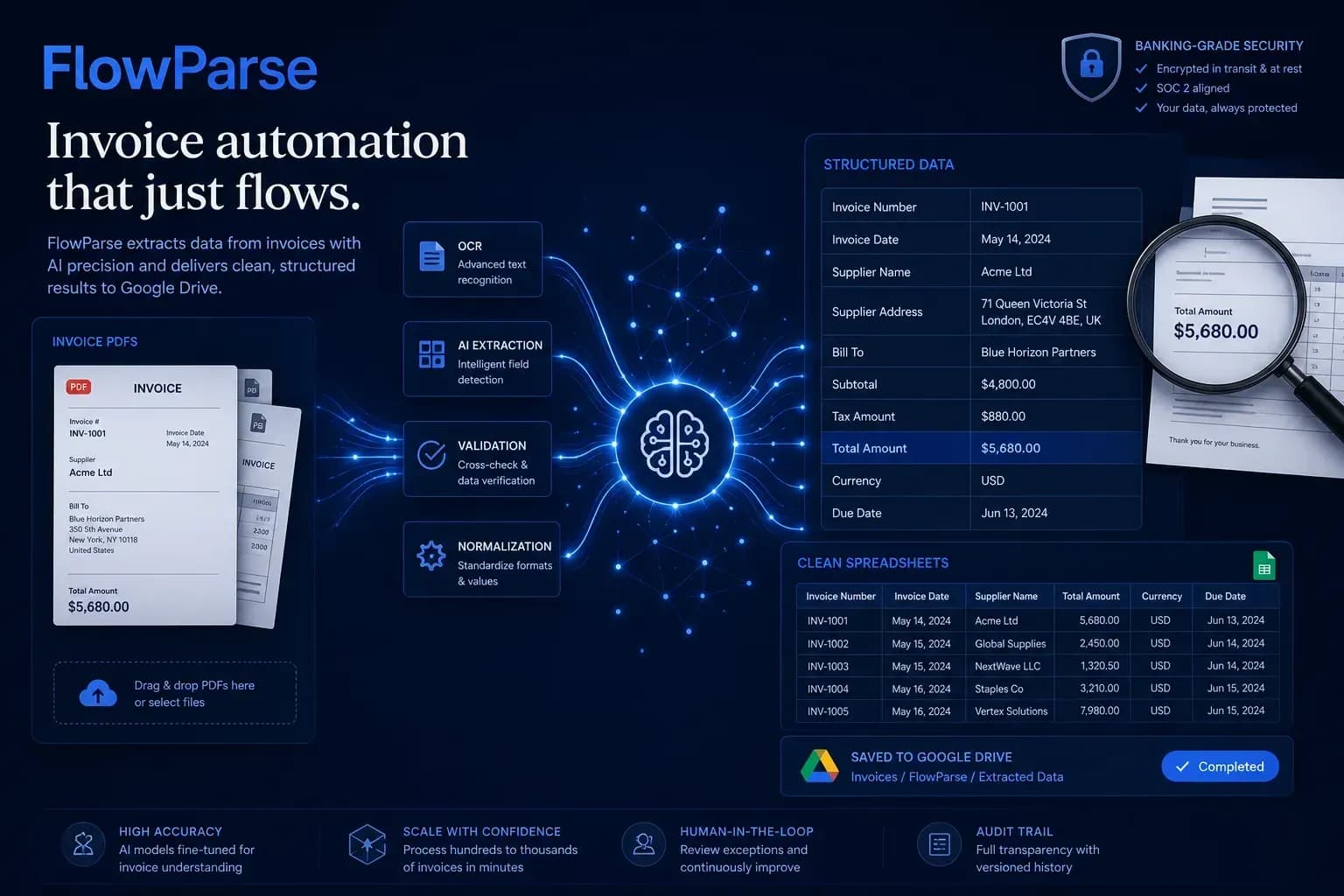
Manual Processing vs AI Automation: A Direct Comparison
The fastest way to see the value is to compare the two approaches side by side. Manual processing is linear, error-prone and impossible to scale; AI automation is near-instant, consistent and scales to any volume. The table below maps the differences across the dimensions finance teams care about most.
| Dimension | Manual processing | Google Drive + AI |
|---|---|---|
| Time per invoice | 2–5 minutes | Seconds of review |
| Scales with volume | Linear (more docs = more hours) | Near-flat — 10 or 10,000 |
| Accuracy | Error-prone typing | AI-extracted + validated |
| Scanned documents | Manual re-typing | OCR automatic |
| Duplicate detection | Easy to miss | Flagged in review |
| Cost at scale | Grows with headcount | Flat subscription |
| Reporting speed | Delayed | Immediate, structured data |
The pattern is consistent: anywhere manual work introduces time, cost or risk, automation removes it. And because the documents already live in Google Drive, there's no migration project — you point the AI at the folders you already use.
Why Google Drive Became the Center of Document Workflows
Google Drive is one of the most widely used cloud storage platforms in the world, and for many businesses it has quietly become the system of record for financial paperwork. Teams store invoices, contracts, receipts, bank statements, supplier documentation and accounting exports in shared folders, organised by client, month or vendor. Because the documents are already there, Drive is the natural starting point for automation: rather than moving files between systems, you automate processing directly from the storage environment your team already uses.
This matters because the biggest friction in document workflows is movement. Every time a file is downloaded, renamed, re-uploaded or emailed, there's an opportunity for it to be lost, duplicated or mishandled. Keeping Google Drive as the single hub — and layering AI document automation on top of it — removes that friction. The benefits compound: centralized document management, easy collaboration, shared team folders, granular access controls and, crucially, an automation-ready foundation.
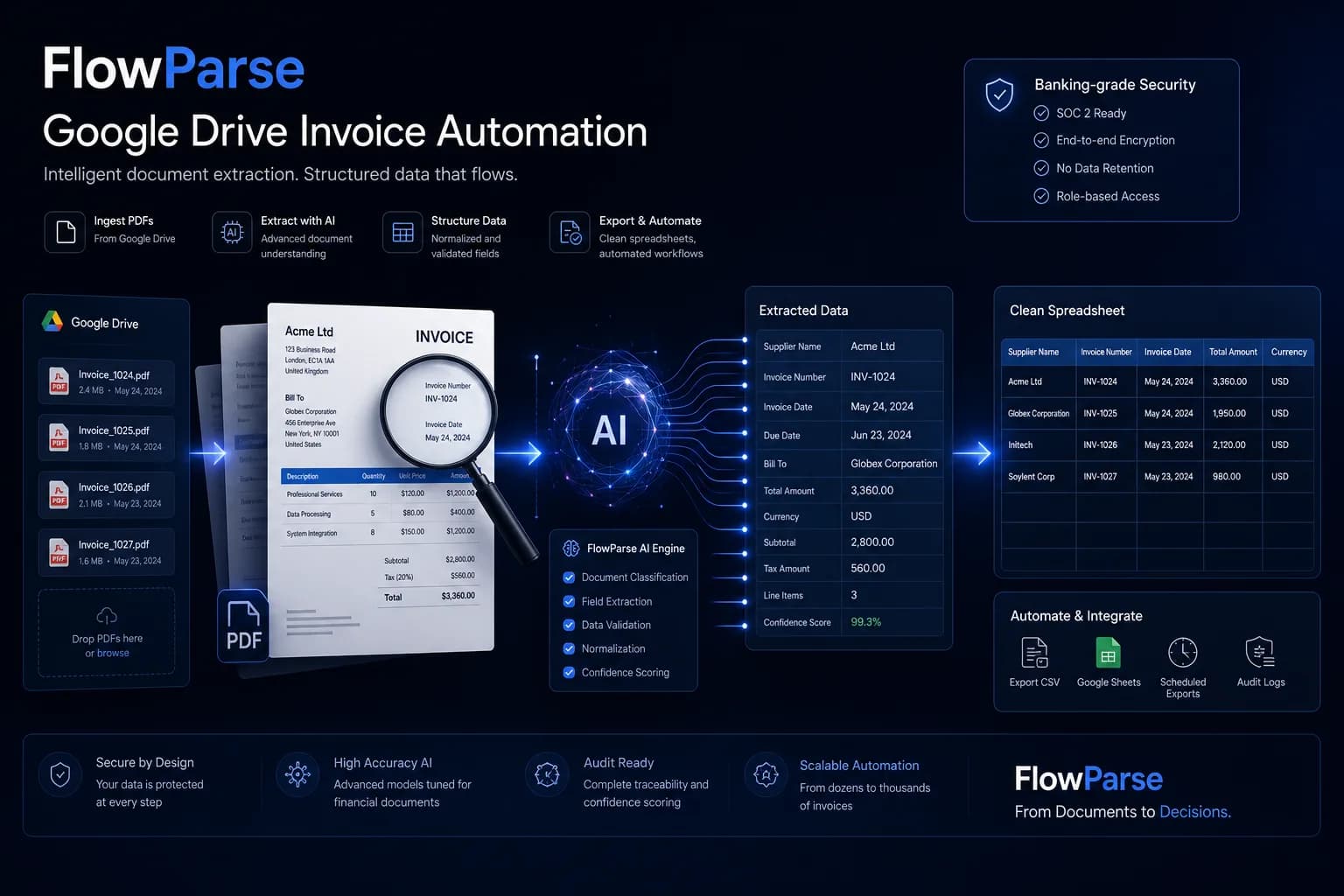
How Google Drive Invoice Automation Works
The process is simpler than most people expect. First, an invoice arrives in Google Drive — uploaded by a team member, synced from a desktop, or saved from an email attachment. Next, you select that document (or point the tool at the folder it lives in). The AI extraction engine then reads the file, running OCR automatically if the document is a scan, and identifies every relevant field. Structured records are generated, and finally the data is delivered as Excel, CSV, or saved straight back to Drive for your accounting workflow. The outcome is the elimination of manual data entry.
PDF lands in Drive
Tool reads the file
AI extracts data
Excel/CSV generated
Ready for bookkeeping
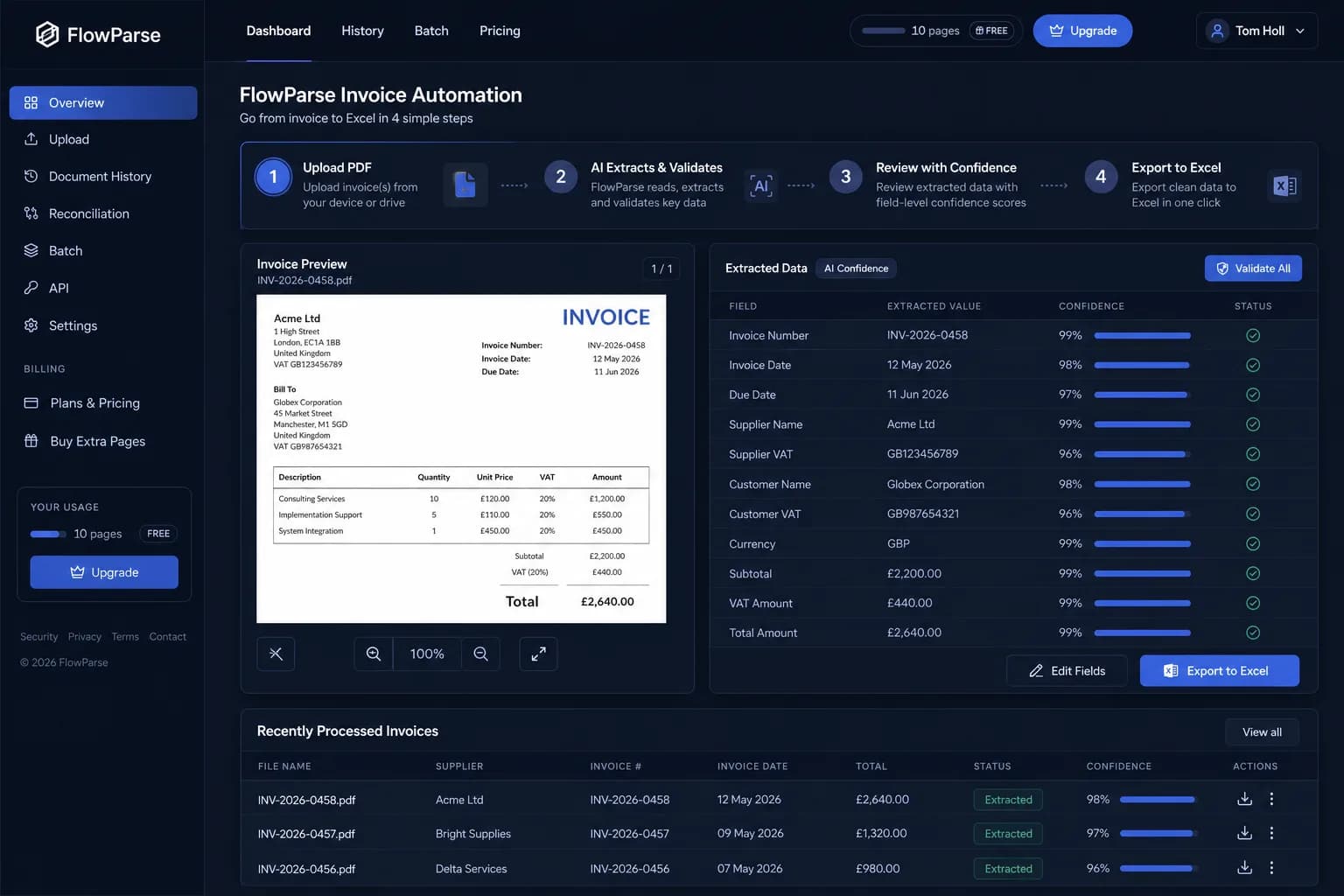
What makes modern automation different from older "PDF importers" is understanding. A template-based tool only works if every invoice looks identical. An AI engine classifies the document, detects its structure, and extracts semantic fields — supplier, invoice number, VAT, line items — regardless of layout or vendor. That's why the same workflow handles a freelancer's hand-made invoice and a multi-page B2B order without per-template setup.
Google Drive PDF to Excel Automation
One of the most requested workflows is Google Drive PDF to Excel automation. Businesses receive supplier invoices, payment reports, transaction exports and financial statements as PDF files — a format designed for printing and reading, not for analysis. PDFs can't be filtered, sorted, summed or audited the way a spreadsheet can. Converting them into Excel unlocks all of that, and doing it automatically from Drive means the conversion happens the moment a document arrives.
FlowParse bridges this gap: point it at a PDF in Drive and it returns a clean, named-column spreadsheet — header data on one sheet, line items on another, totals validated. You can read more on the invoice PDF to Excel and PDF to CSV pages, which cover the export formats in depth.
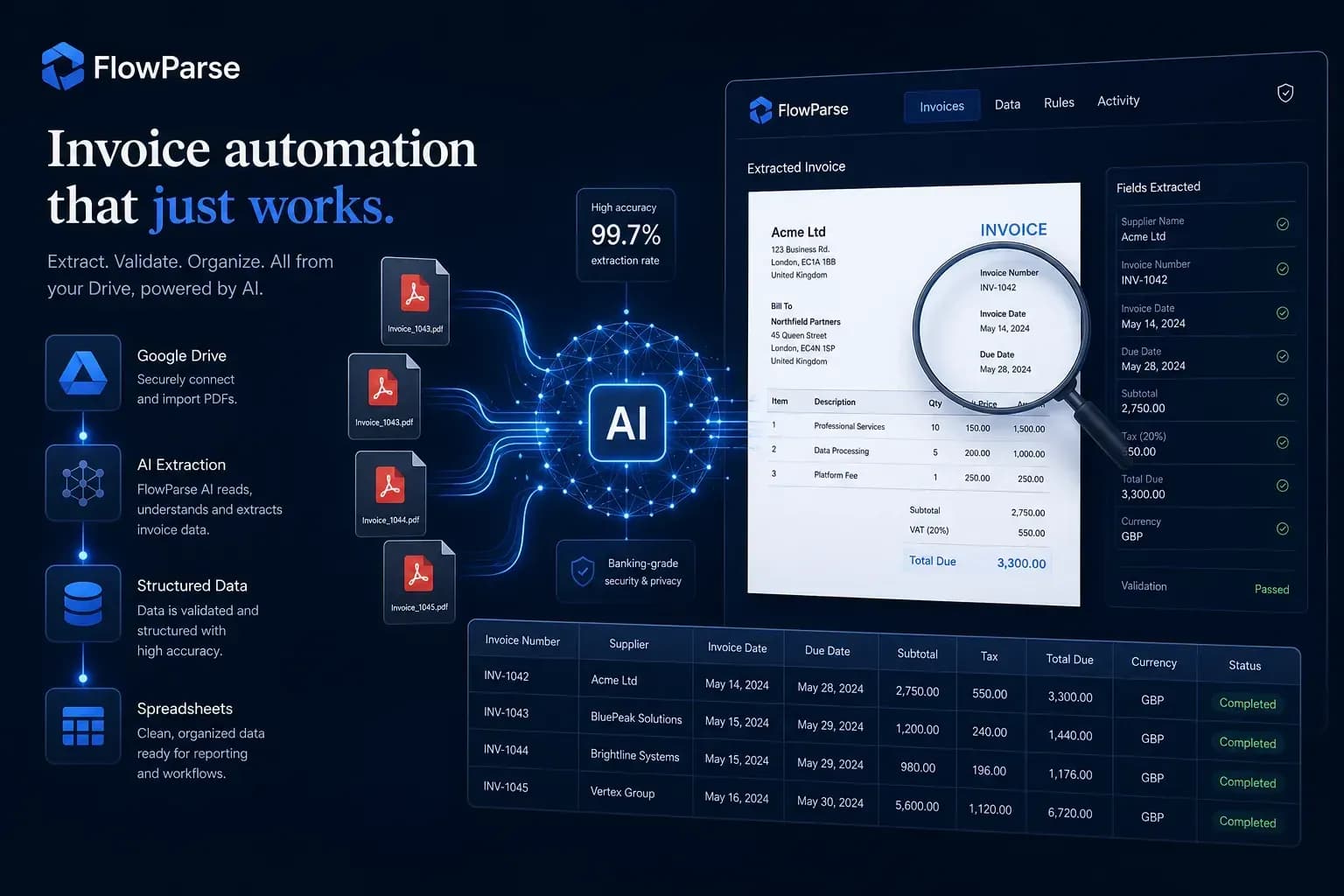
The Role of OCR in Google Drive Automation
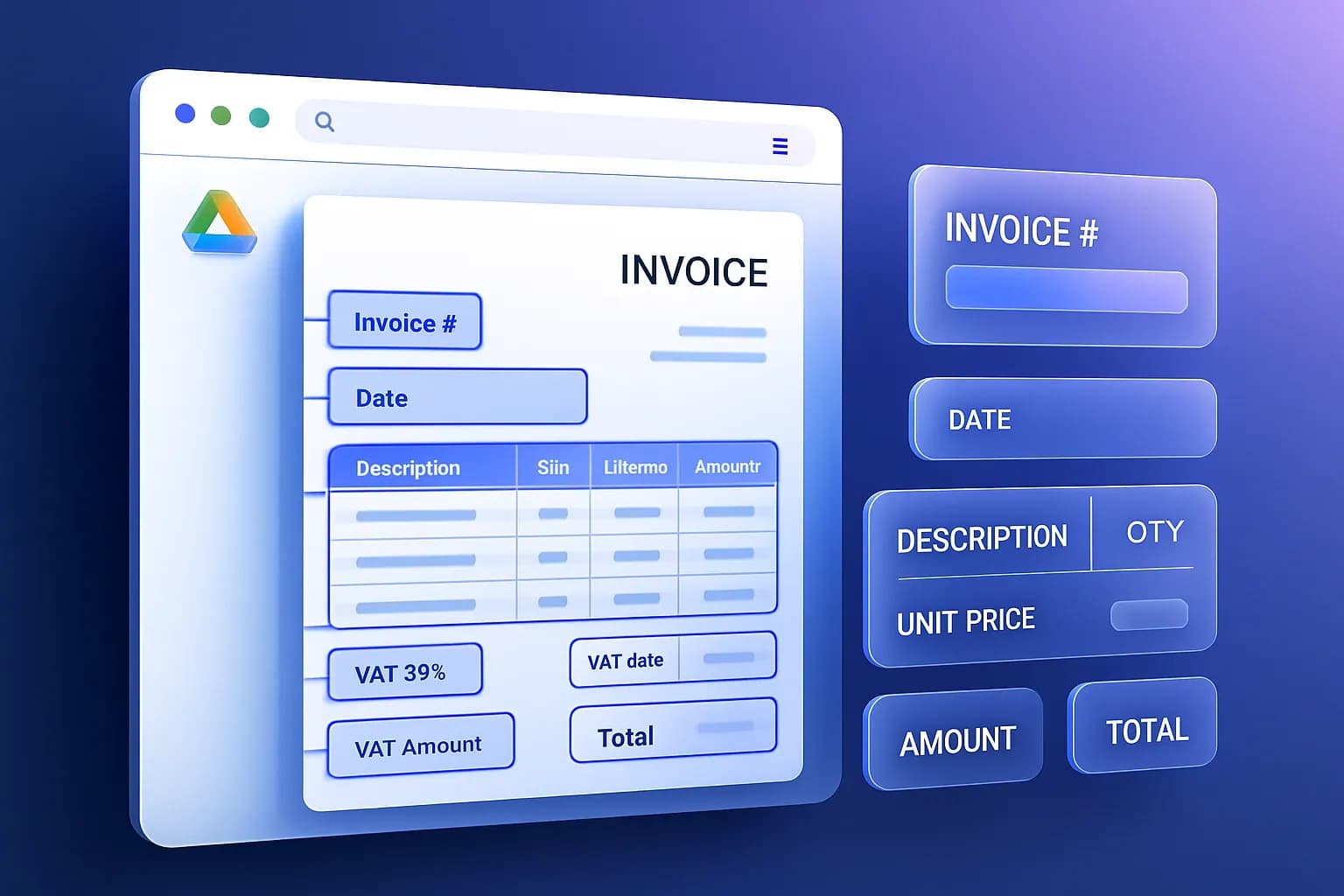
A large share of business documents are scanned — physical invoices photographed and emailed, or paper archives digitised years ago. These files often contain no selectable text, only image pixels, and that's exactly where naive automation breaks down. Without OCR, a scanned invoice is invisible to extraction tools. Google Drive OCR solves this by converting image pixels back into machine-readable text before the extraction pipeline runs.
Modern OCR does more than recognise characters. It performs perspective correction on photographed pages, enhances contrast on faded scans, and detects table structure so that columns and rows are preserved. The result: scanned invoices, photographed receipts, image-only PDFs and financial tables all become structured data. See invoice OCR for accuracy details across scan qualities.
OCR vs AI Extraction: Why You Need Both
OCR and AI extraction are often confused, but they solve different problems. OCR turns an image into text — it answers "what characters are on this page?" AI extraction turns text into structured meaning — it answers "which of these numbers is the VAT, and which line items belong to this invoice?" A scanned PDF run through OCR alone gives you a wall of unstructured text; you still have to find and organise the fields by hand. FlowParse chains them: OCR first, then AI extraction and validation, so a photographed receipt comes out the other side as clean spreadsheet rows.
| Capability | OCR only | AI extraction (with OCR) |
|---|---|---|
| Reads scanned images | Yes | Yes |
| Identifies semantic fields | No | Yes — supplier, VAT, totals |
| Maps table columns to rows | No | Yes |
| Validates totals/maths | No | Yes |
| Output | Raw text | Structured Excel / CSV |
Automating Bank Statement Processing
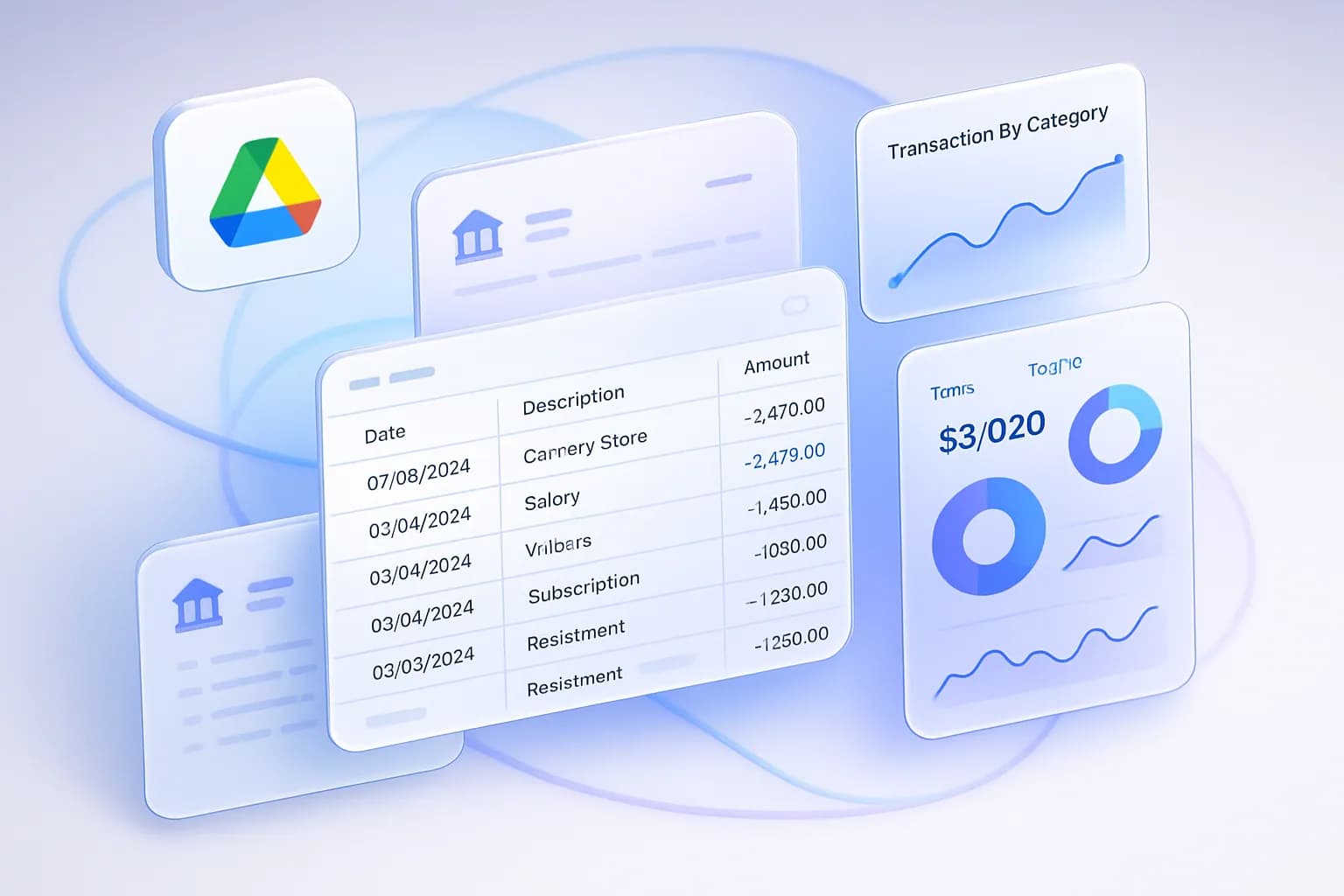
Google Drive automation isn't limited to invoices. Many finance teams keep monthly statements, payment reports and transaction exports in shared folders. Bank statements are a different extraction challenge: they contain long transaction tables with debit and credit columns that vary by bank, running balance calculations and date-range headers. AI automation extracts transaction dates, descriptions, balances, credits and debits, and exports them into a structured spreadsheet — validating running-balance arithmetic along the way.
This is the backbone of fast reconciliation, clean bookkeeping and accurate reporting. For the full workflow, see bank statement to Excel.
Google Drive Document Automation Beyond Invoices
The broader category — Google Drive document automation — covers any repetitive document workflow that starts in Drive. Receipts captured for expense reports, purchase orders matched against invoices, supplier onboarding documents, and recurring financial reports can all be processed automatically. The common thread is turning unstructured PDFs into structured, queryable data the moment they land in storage.
Treating Drive as an automation surface changes how teams think about documents. Instead of a passive archive, each folder becomes an input to a workflow: drop a file in, get structured data out. Over time, this builds a clean, searchable dataset of every financial document the business has ever received — the foundation for analytics, audits and forecasting.
Google Drive Accounting Automation
Google Drive accounting automationis the end-to-end view: documents enter Drive, AI extracts and validates the data, and the structured output flows into your accounting system. CSV exports import cleanly into QuickBooks, Xero, Sage and other tools, so the journey from "PDF in a folder" to "posted journal entry" happens with minimal human touch. Pair this with the invoice parser and your month-end close shrinks from days to hours.
The strategic payoff is scalability. A manual process scales linearly — twice the invoices means twice the hours. An automated process scales almost flat: whether 100 or 10,000 documents arrive, the workflow is the same. That's how growing businesses absorb more volume without adding finance headcount.
Benefits of AI-Powered Document Automation
Faster processing
Documents are processed in minutes, not hours — often the moment they arrive in Drive.
Better accuracy
Automation removes manual typing, the biggest source of bookkeeping errors, and validates results.
Lower costs
Teams spend less time on repetitive data entry and more on high-value work.
Instant reporting
Structured data is available immediately for dashboards and reconciliation.
OCR coverage
Scanned and photographed documents are handled, not skipped.
Scalability
Process thousands of documents a month without extra headcount.
Who Benefits Most?
Google Drive document automation delivers value to anyone who handles financial paperwork at volume, but a few groups see outsized returns. Accounting firms automate client document processing across many entities. Ecommerce businesses handle high volumes of supplier invoices and marketplace reports. Agencies manage documents across many clients from shared Drives. Bookkeepers cut repetitive work dramatically, and finance teams scale operations without new hires.
Real-World Examples
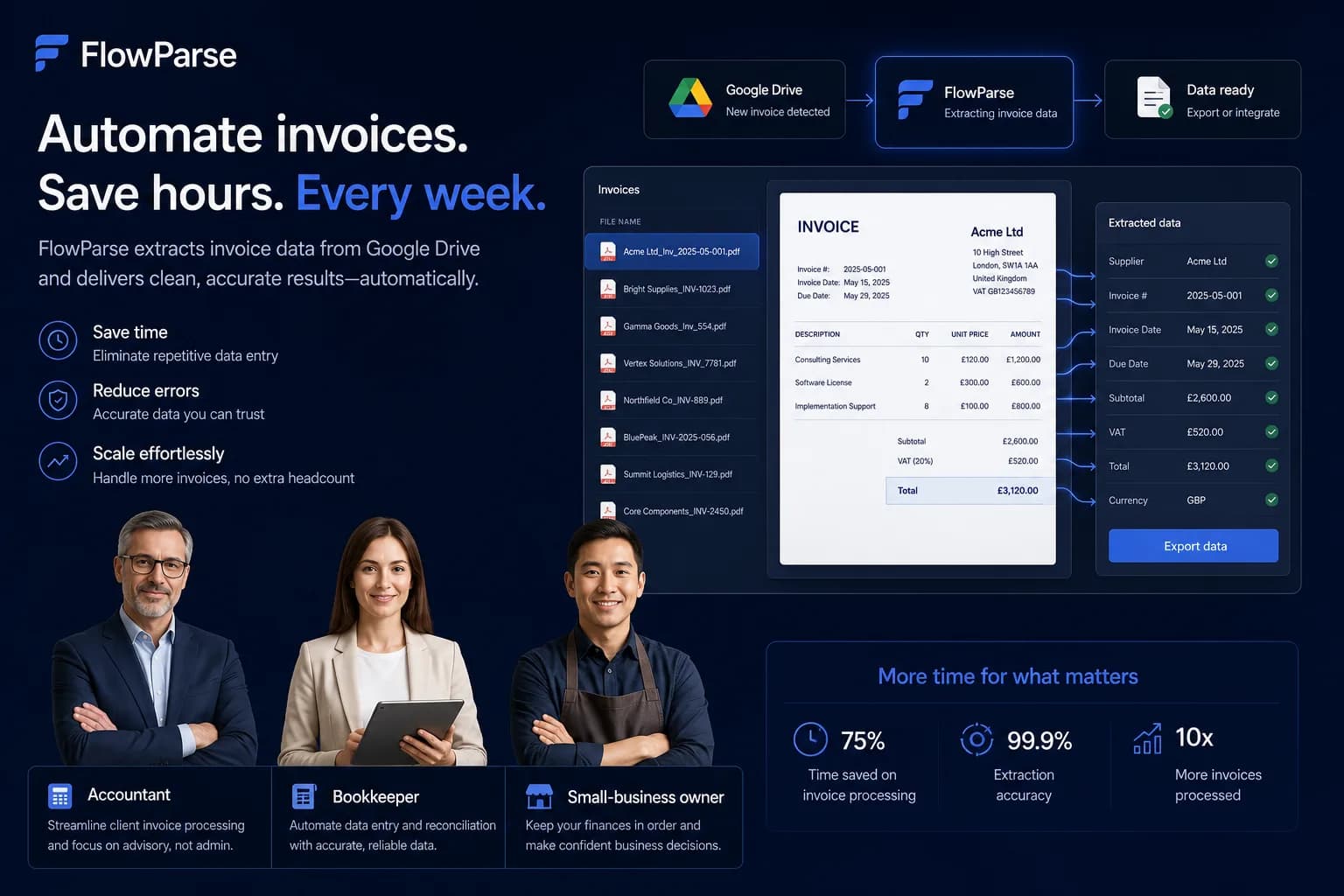
The clearest way to understand the impact is through concrete scenarios finance teams face every month.
A 12-person firm receives client invoices into shared Google Drive folders — one folder per client. Previously, juniors downloaded and keyed each invoice into client spreadsheets. By importing directly from each client folder and exporting structured Excel, the firm cut invoice data entry from roughly three days a month to a few hours of review, and onboarded two new clients without adding staff.
An online retailer pulls hundreds of supplier invoices and marketplace payout reports into Google Drive each month. Manually reconciling them delayed month-end by a week. With AI extraction, line items and totals land in Excel automatically, so reconciliation now happens continuously instead of in a painful end-of-month sprint.
A marketing agency manages expense receipts and vendor invoices across dozens of client accounts in Drive. Photographed receipts that OCR-less tools ignored are now read automatically, giving the finance lead a clean, categorised dataset for client billing and reducing disputed charges.
Common Mistakes When Automating Document Workflows
Automation pays off fastest when you avoid a few predictable pitfalls:
Treating OCR as enough
Raw OCR text still needs structuring. Use a tool that combines OCR with AI extraction and validation, not OCR alone.
Skipping the review step
Automation should propose, humans should approve high-stakes values. Keep a quick review on totals and tax until you trust the source's accuracy.
Disorganised Drive folders
Automation is only as tidy as your storage. Keep clear folders (per client, per month, per vendor) so the right documents flow into the right exports.
Ignoring scanned documents
If half your invoices are scans and your tool can't OCR them, you've only half-automated. Confirm scanned-document support up front.
No export-to-accounting plan
Extraction is step one. Decide early whether you need Excel for review or CSV for QuickBooks/Xero import, so the output fits your books.
Getting Started with Google Drive Automation
Getting started takes minutes. Connect your Google Drive account from your settings using secure OAuth — no password is shared and you can disconnect anytime. Choose the files or folders you want to process, import a document, and export the structured result to Excel or CSV (or save it back to Drive). For a detailed walkthrough with screenshots and troubleshooting, follow our step-by-step guide to connecting Google Drive for invoice processing, or visit the Google Drive integration page.
Ready to try it? Connect Google Drive and process your first invoice free — no credit card required.
The Future of Google Drive Document Automation
The trajectory is clear: toward AI document understanding, automated accounting workflows, real-time financial reporting and increasingly autonomous bookkeeping. As models get better at reading messy, real-world documents, the human role shifts from data entry to oversight — reviewing exceptions rather than retyping every line. Businesses that automate today build that muscle early and gain a compounding advantage; those still processing PDFs by hand will find it harder to keep pace.
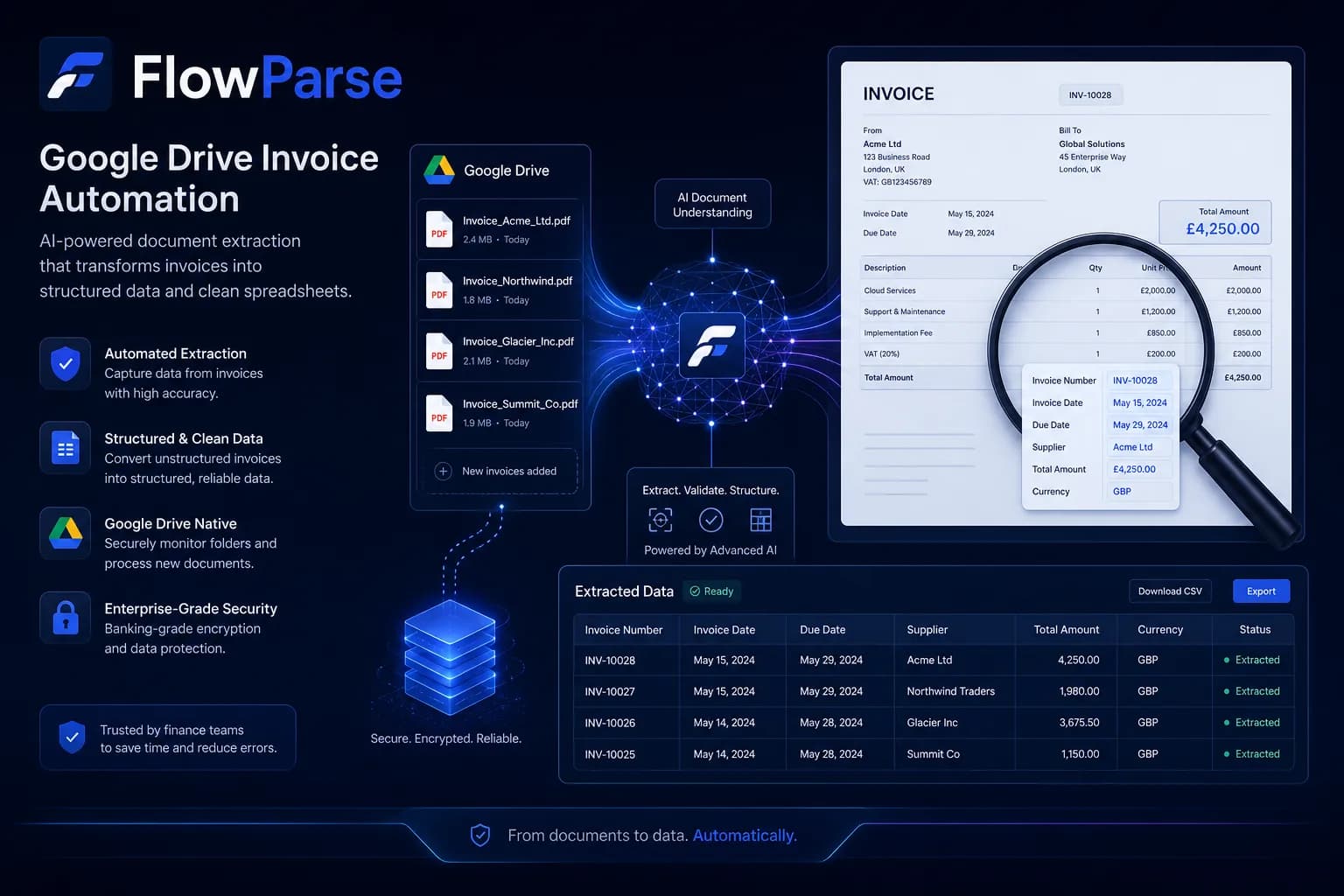
Google Drive has already become the primary storage platform for millions of businesses. The next step is automation. By combining Drive with AI-powered document processing, companies eliminate manual PDF handling, accelerate bookkeeping, and unlock structured financial data automatically — resulting in faster operations, better reporting and dramatically less administrative work.
