
 Guide · Updated 2026
How to Connect Google Drive for Automated Invoice Processing
Many finance teams already store invoices, bank statements, receipts and accounting documents inside Google Drive — yet most still download PDFs, re-upload them elsewhere, and copy data into spreadsheets by hand. Modern AI automation removes that busywork entirely. In this guide you'll learn how to connect Google Drive to FlowParse and automatically turn PDFs into Excel and CSV.
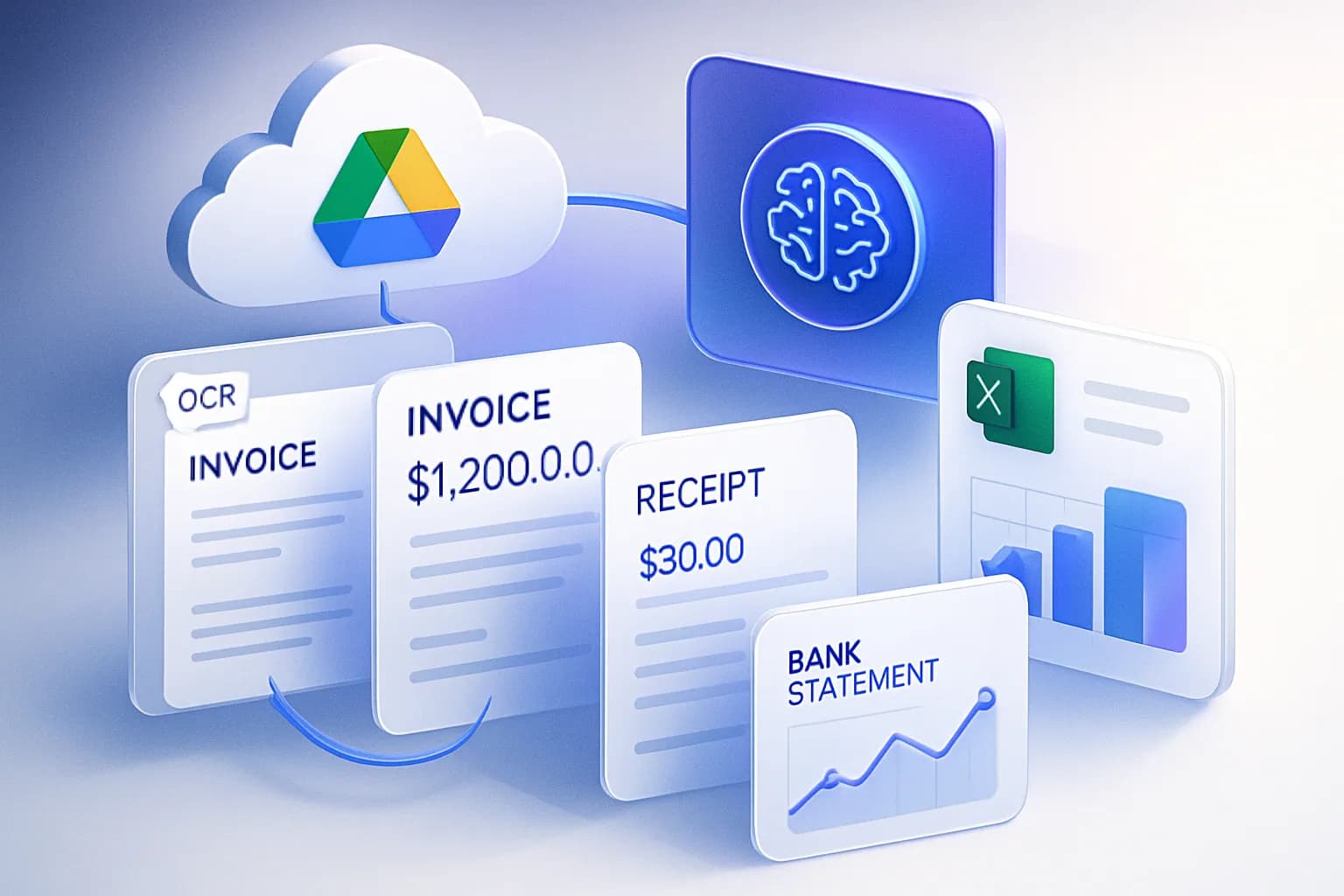
Why Connect Google Drive to FlowParse?
Google Drive is one of the most widely used business document stores. Companies keep invoices, bank statements, receipts, supplier documents, payment reports and tax documents in shared folders every day. Without automation, employees spend hours manually handling those PDFs. Connecting Google Drive lets files move straight from storage into AI-powered processing.
What Documents Can Be Processed?
Invoices
- Invoice numbers
- Suppliers
- VAT & taxes
- Line items
- Totals
Bank statements
- Transaction dates
- Descriptions
- Balances
- Debit values
- Credit values
Receipts
- Merchants
- Taxes
- Purchase details
Financial reports
- Convert PDF reports
- Into structured datasets
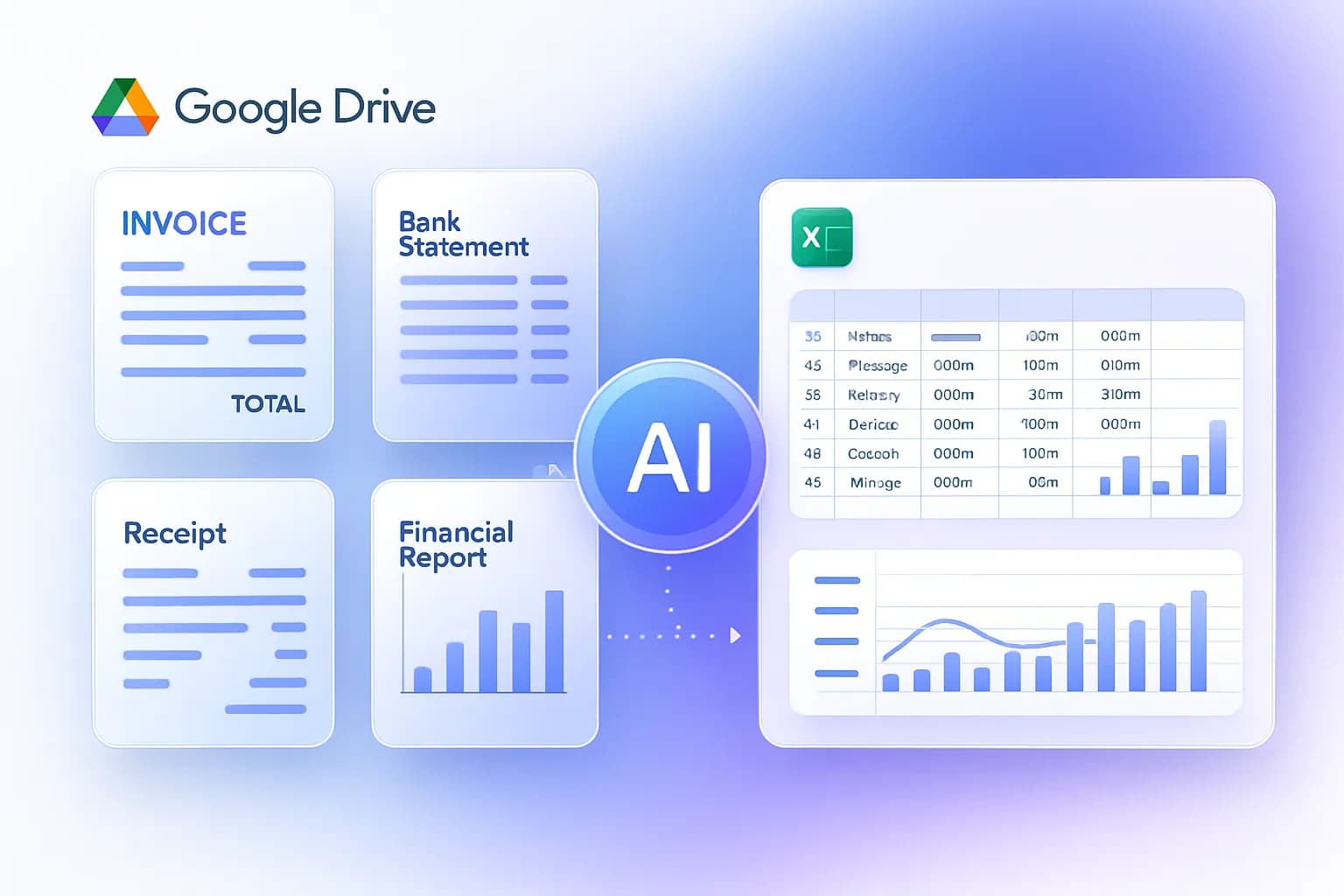
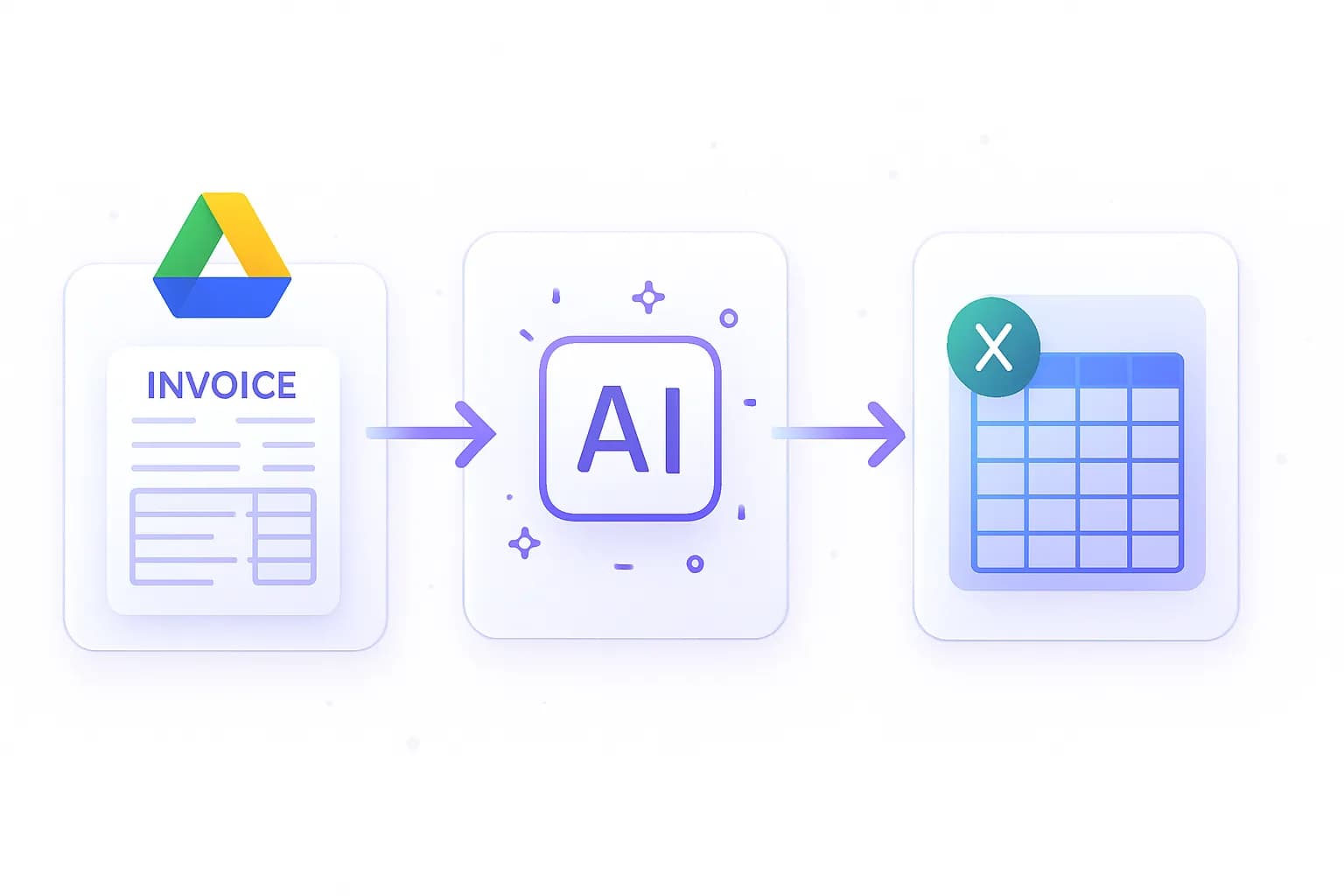
How Google Drive Invoice Automation Works
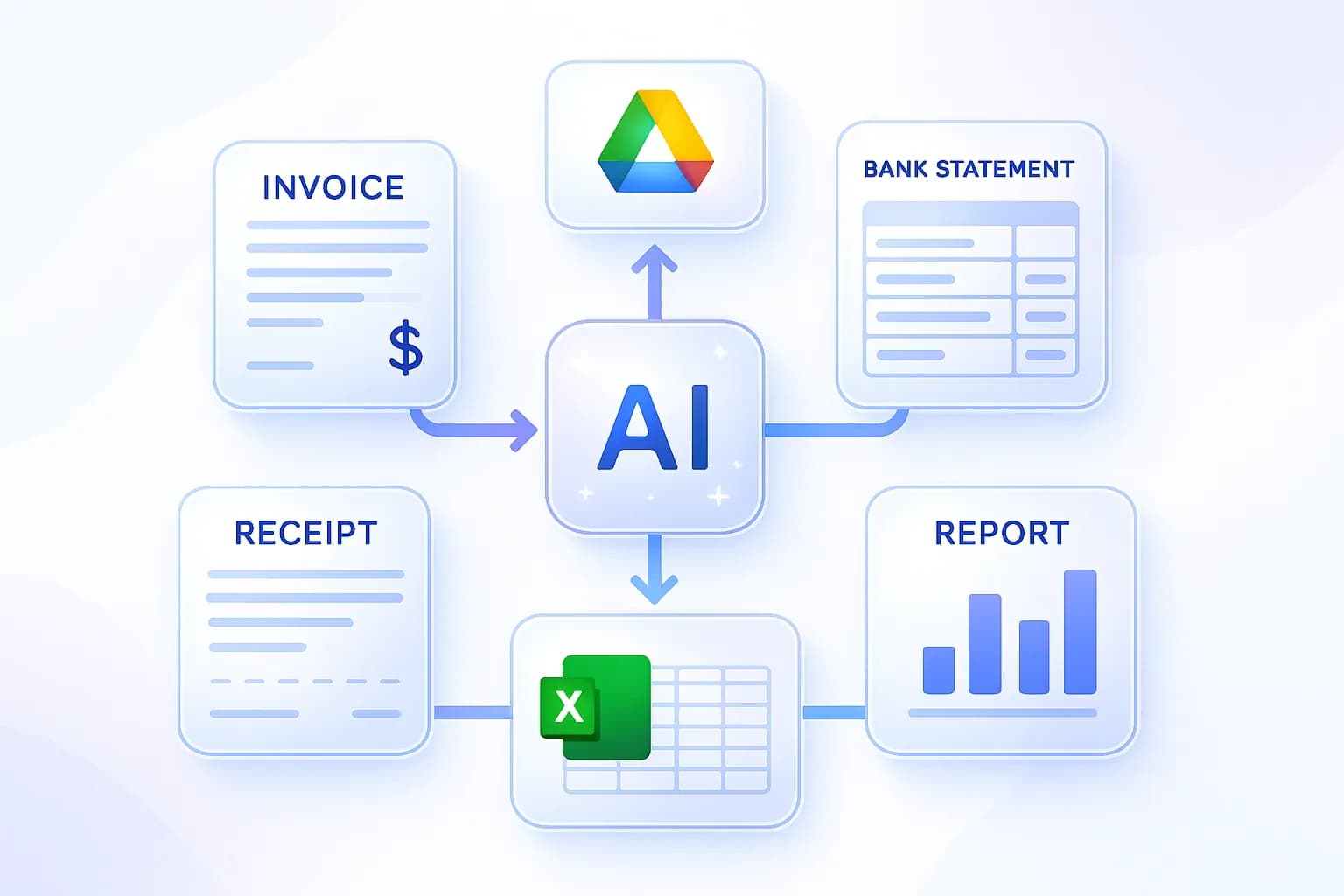
The workflow is simple — from a PDF landing in Drive to structured data ready for reporting:
PDF arrives in Google Drive
FlowParse reads the file
AI extracts the data
Excel is generated
Ready for bookkeeping
Manual vs Automated Invoice Processing
Before you set things up, it helps to see exactly what you're replacing. Manual handling of Google Drive PDFs is slow, repetitive and error-prone; connecting Drive to AI makes the same work near-instant and consistent — and it scales no matter how many documents arrive.
| Step | Manual | Google Drive + AI |
|---|---|---|
| Get the file | Download from Drive | Imported in place |
| Read the data | Eyeball the PDF | AI extracts every field |
| Scanned docs | Re-type by hand | OCR automatic |
| Build spreadsheet | Copy-paste cell by cell | Structured Excel generated |
| Time per invoice | 2–5 minutes | Seconds of review |
| At 500/month | 20–40+ hours | A few hours of review |
Step-by-Step Setup Guide
Step 1: Connect your Google Drive account
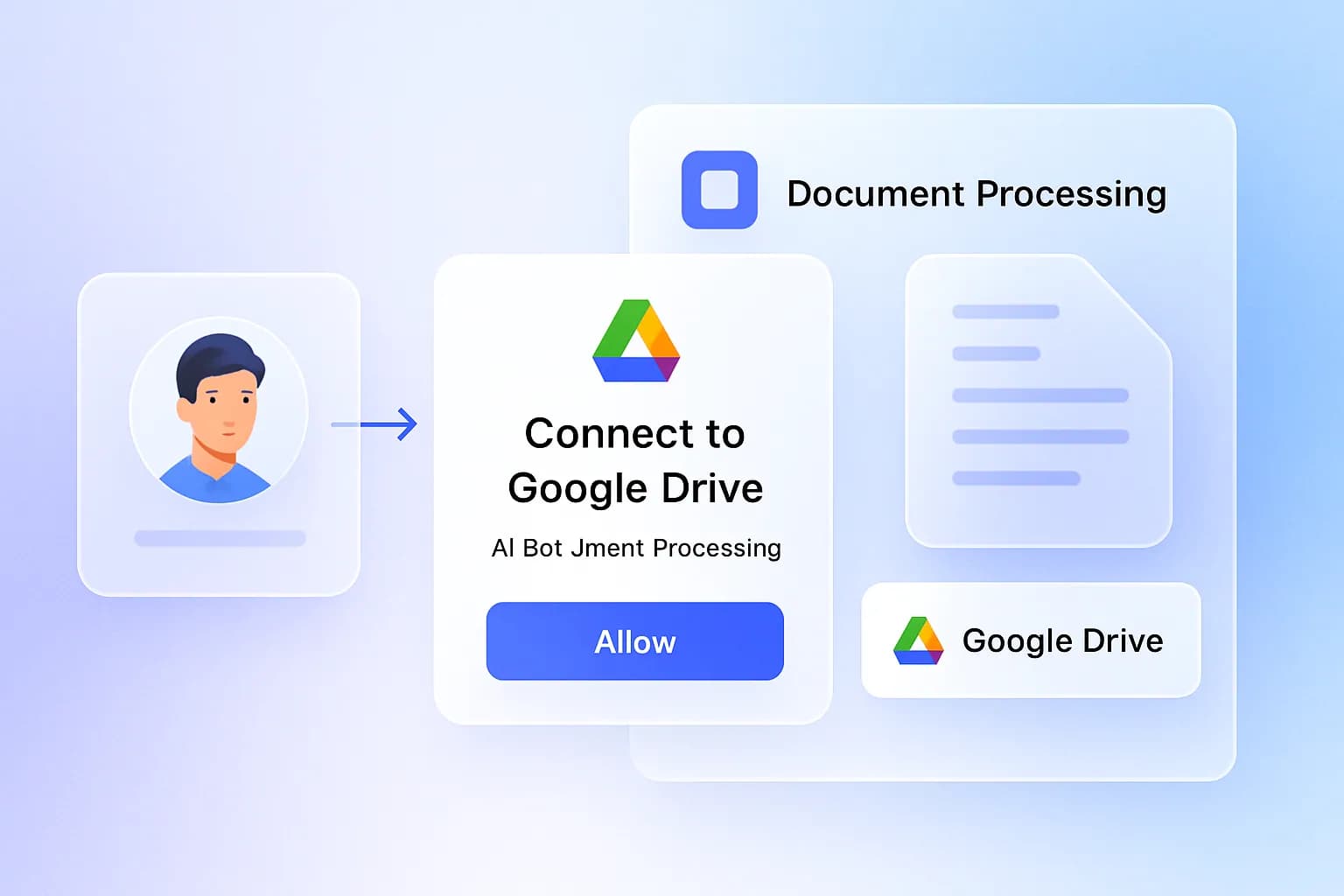
Click Connect Google Drive in your cloud settings. You'll be redirected to Google's secure authentication screen — grant access. FlowParse uses OAuth and never requests your password. Once connected, your account is linked and ready.
Step 2: Choose your files and folders
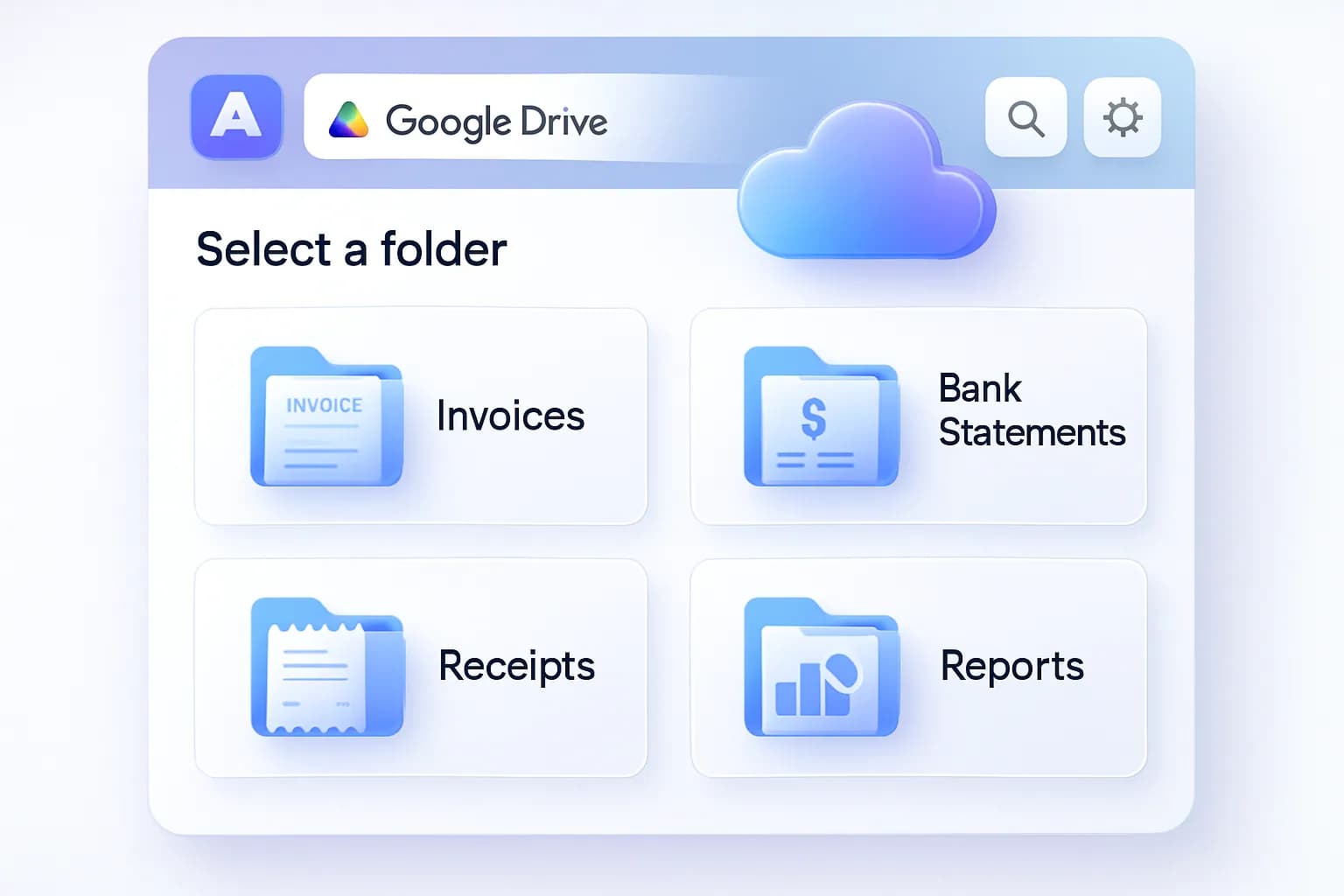
Pick the documents to process — for example folders for Invoices, Supplier Documents, Bank Statements or Accounting Exports. Only what you choose is accessed, keeping workflows organised and secure.
Step 3: Process your documents
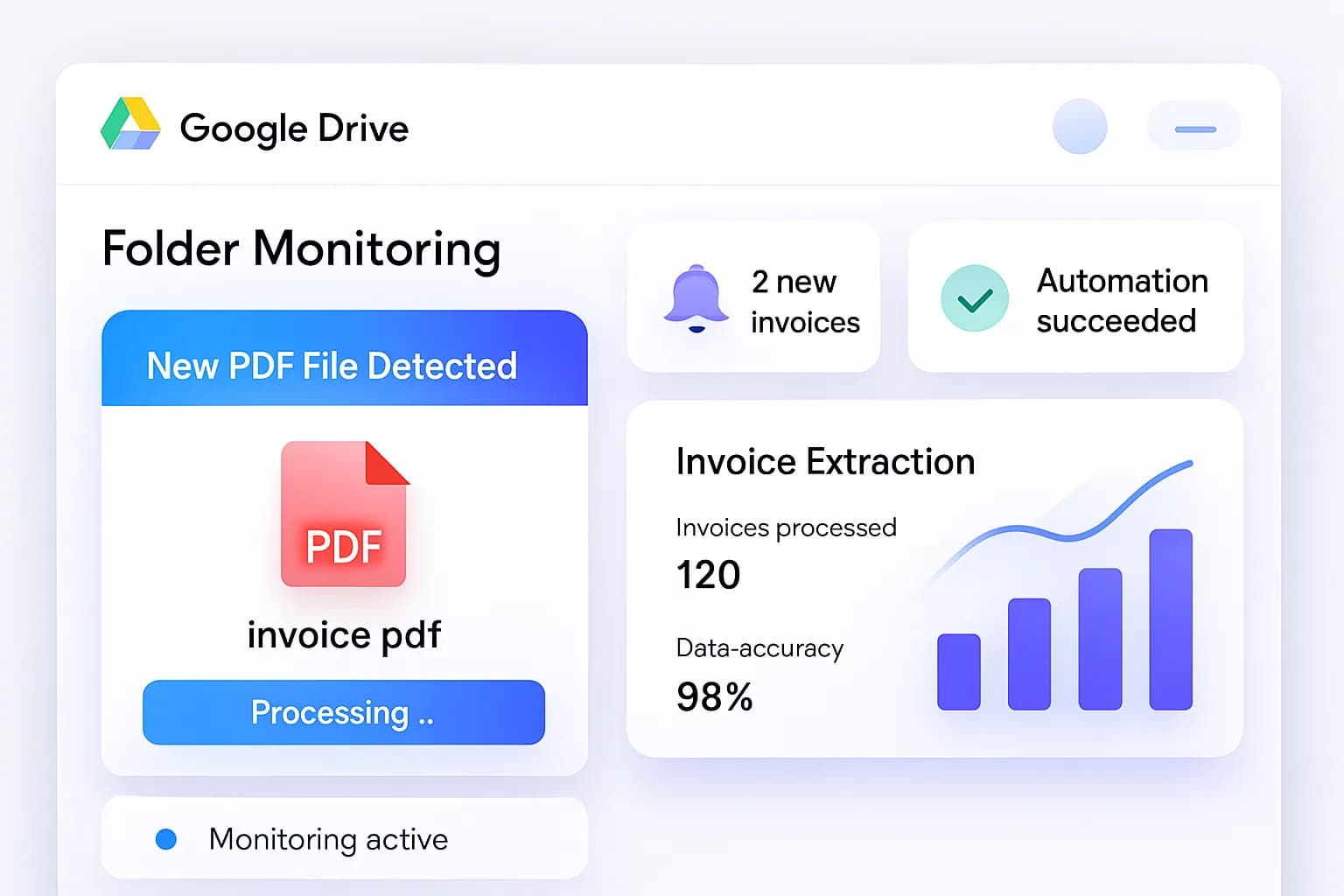
Import a file from Drive and FlowParse immediately detects the document type and starts extraction — whether it's a supplier invoice, a bank statement or a receipt — then produces a clean spreadsheet you can download or save back to Drive.
Automating Invoice Processing
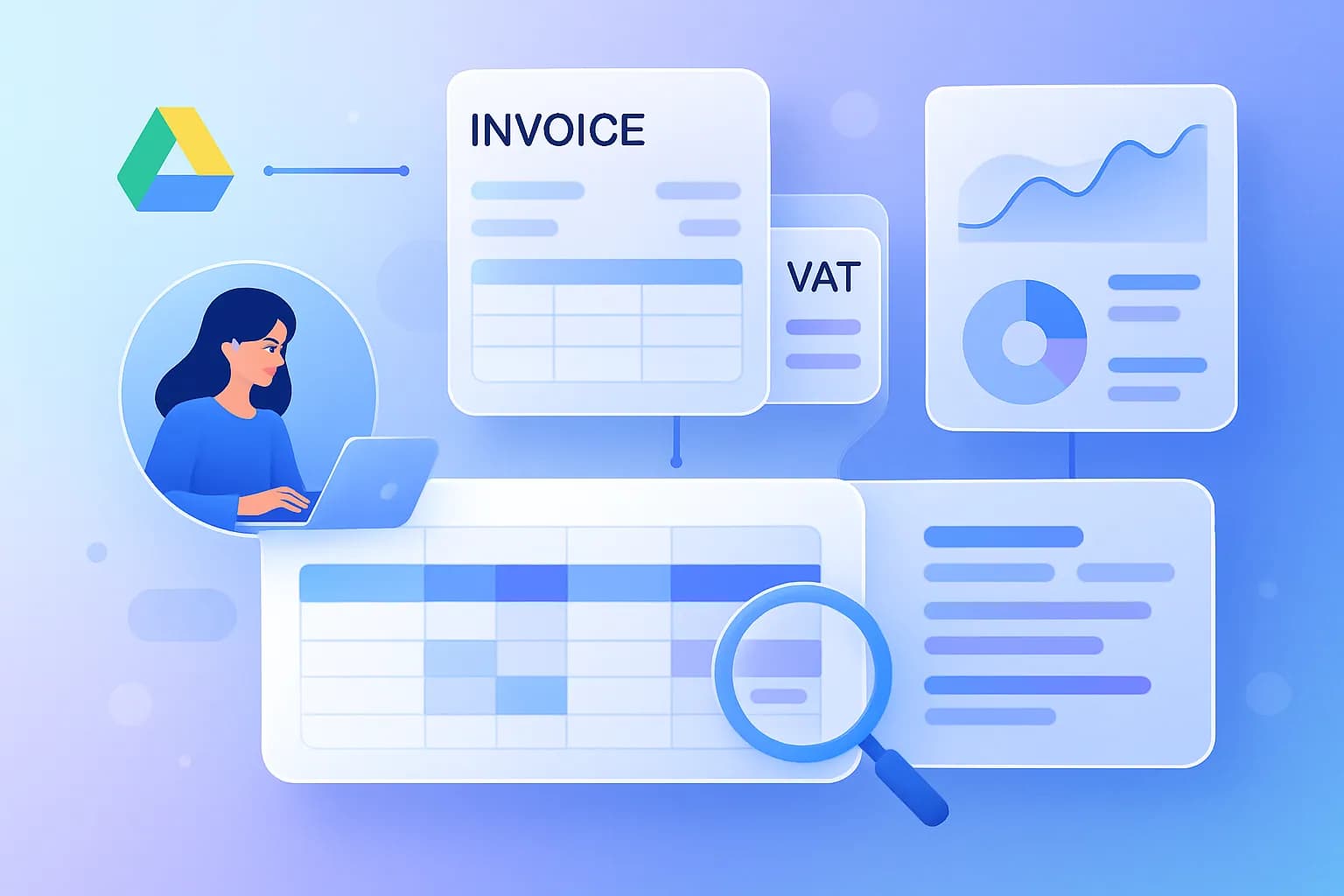
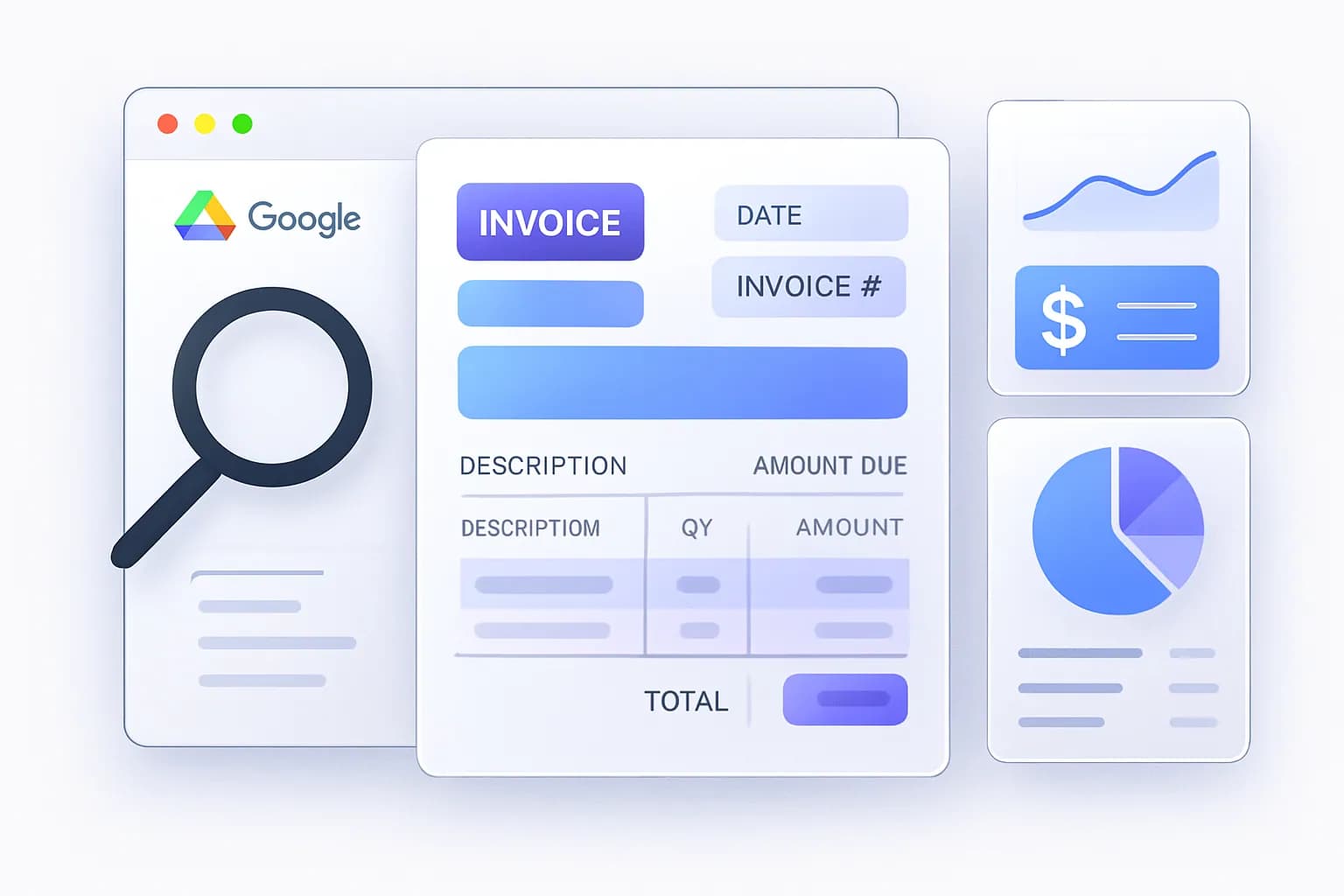
Invoice automation is the most common use case. FlowParse extracts invoice numbers, dates, VAT, taxes, supplier and customer details, and line items — exporting to Excel, CSV or Google Sheets. It's ideal for invoice PDF to Excel workflows used by accountants, agencies and ecommerce businesses.
Automating Bank Statement Processing
Many businesses keep statements in Google Drive. FlowParse converts them into Excel, CSV or transaction datasets — perfect for reconciliation, bookkeeping and reporting. See bank statement to Excel.
OCR for Scanned PDFs
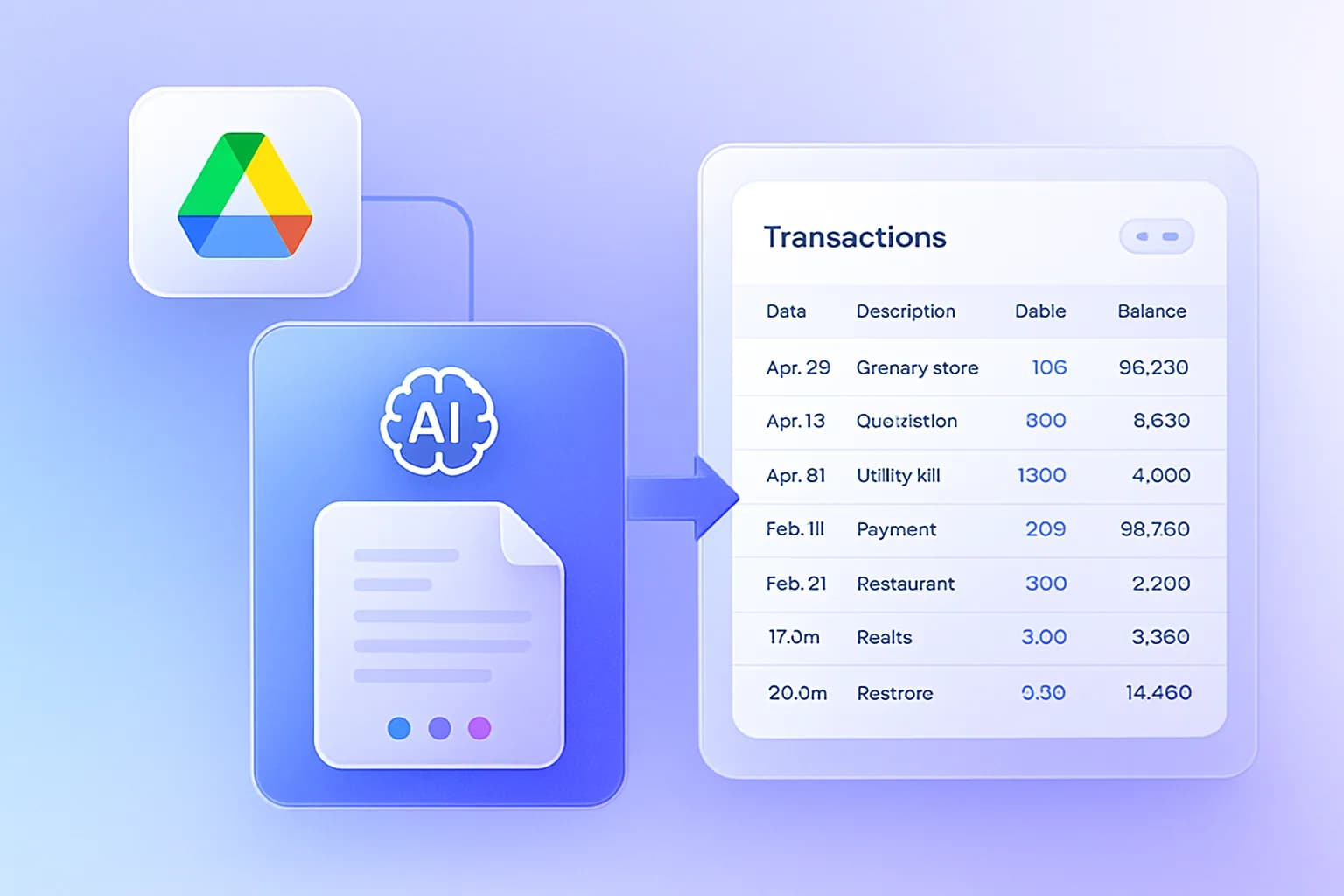
Not every PDF has selectable text — many are scans, screenshots or photographed documents. FlowParse's OCR engine reads scanned invoices, scanned statements, image PDFs and receipts automatically.
Common Automation Workflows
Security & Permissions
FlowParse uses OAuth authentication, encrypted connections, permission-based access and secure processing. Only the files you authorize can be accessed, and you stay in control of your data — disconnect any time.
Troubleshooting
My files are not processing
Check folder permissions, the PDF format, and that your Google Drive connection is still active.
OCR is not extracting correctly
Make sure scans are readable and not heavily blurred — higher-resolution scans extract more accurately.
The wrong folder is being used
Review your selected folder settings and reconnect if needed.
Best Practices for Google Drive Invoice Automation
A few habits get you the most accurate results and the cleanest accounting data from day one.
Organise folders by purpose
Keep dedicated folders (per client, month or vendor) so the right documents flow into the right exports and nothing gets mixed up.
Scan at 300 DPI or higher
If you scan paper invoices, higher resolution dramatically improves OCR accuracy on small fonts and totals.
Review totals before export
Let AI do the extraction, but glance at totals and tax on high-value invoices until you fully trust the source's format.
Pick the right export
Use Excel for human review and multi-sheet workbooks; use CSV when importing straight into QuickBooks, Xero or Sage.
Save results back to Drive
Keep the structured Excel/CSV alongside the source PDF so your archive is complete and audit-ready.
Batch similar documents
Processing a folder of similar invoices together keeps your workflow predictable and easy to reconcile.
Who Uses Google Drive Invoice Automation
Accountants
Process client invoices from shared Drive folders without manual entry.
Bookkeepers
Turn monthly document piles into clean, reconciled spreadsheets fast.
Ecommerce
Handle high volumes of supplier invoices and payout reports automatically.
Agencies
Manage documents across many client Drives at scale.
Finance teams
Build scalable, audit-ready document workflows.
Freelancers
Keep books tidy without spending evenings on data entry.
