Introduction
Bank statements arrive as PDFs, but reconciliation, bookkeeping and reporting all need the transactions in a spreadsheet. Getting from one to the other — cleanly, with the running balance intact — is one of the most common headaches in finance.
This guide walks through every method, from manual retyping to AI extraction, and covers the parts that actually cause problems: separating debit and credit columns, preserving the running balance, and merging transaction tables across pages.
The goal is a clean transaction table — one row per transaction, correct debit/credit columns, and a validated running balance — ready for reconciliation.
Why Convert Statements to Excel?
A PDF statement is fine for reading, but useless for analysis. You cannot filter, sort, sum, or reconcile a PDF. Converting it to Excel unlocks the data: you can match transactions to invoices, categorise spending, prepare reports, and feed accounting software.
For accountants and finance teams, this is the first step in every reconciliation cycle — see the dedicated bank statement parser for accountants for how this fits a practice workflow.
Manual Conversion
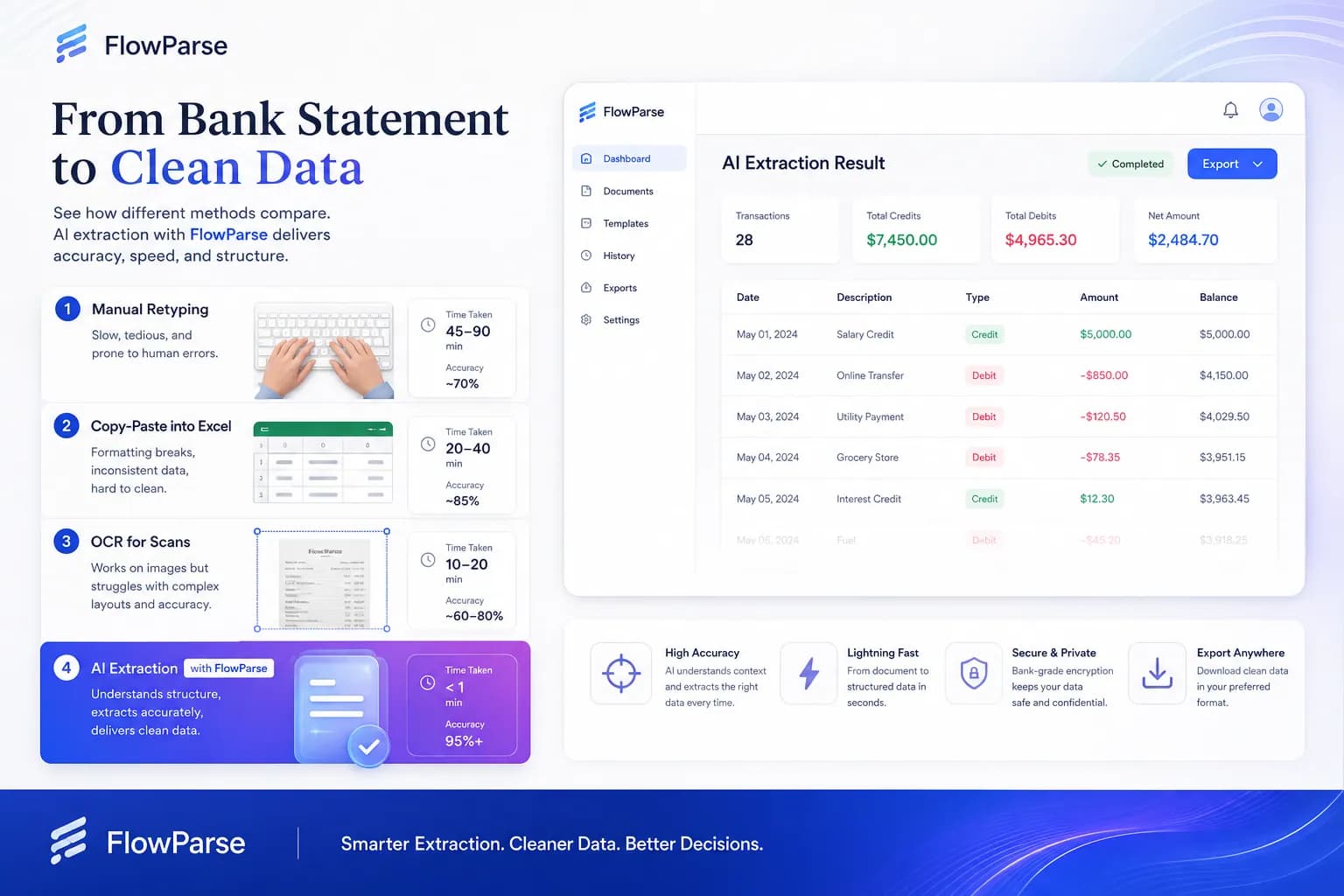
The manual method is to open the statement and type every transaction into Excel by hand. It works for a few transactions, but a typical monthly statement has dozens or hundreds — and a single mistyped figure throws off the running balance and the reconciliation.
Manual conversion is slow (often 30–60 minutes per statement), error-prone, and impossible to scale across many accounts or clients.
Excel Import & Copy-Paste
The next step many people try is copy-paste, or Excel's built-in “import from PDF” feature. These can help with very clean, simple statements, but they usually struggle with real ones: columns collapse, debit and credit values merge, dates and descriptions run together, and the running balance is lost.
The reason is structural — PDF tables are drawn for printing and do not store true cell boundaries, so generic import tools guess at the layout and often get it wrong. The result is data that needs as much cleanup as manual entry.
OCR Methods
Many statements are scanned or image-based — there is no selectable text to copy at all. OCR is required here: it converts the image into machine-readable text, which is the prerequisite for any extraction.
But OCR alone produces a stream of text, not a clean transaction table. It does not know which numbers are debits versus credits, or where one transaction ends and the next begins. OCR is necessary for scans, but it is only the first layer.
AI Extraction
AI extraction adds understanding on top of OCR. It recognizes the transaction table, separates debit and credit columns, reads the running balance, and identifies dates, descriptions and references — regardless of which bank produced the statement. It is template-free, so there is nothing to configure per bank.
This is how a converter like FlowParse produces a clean, reconciliation-ready table from any statement — digital or scanned — in seconds.
Transaction Extraction
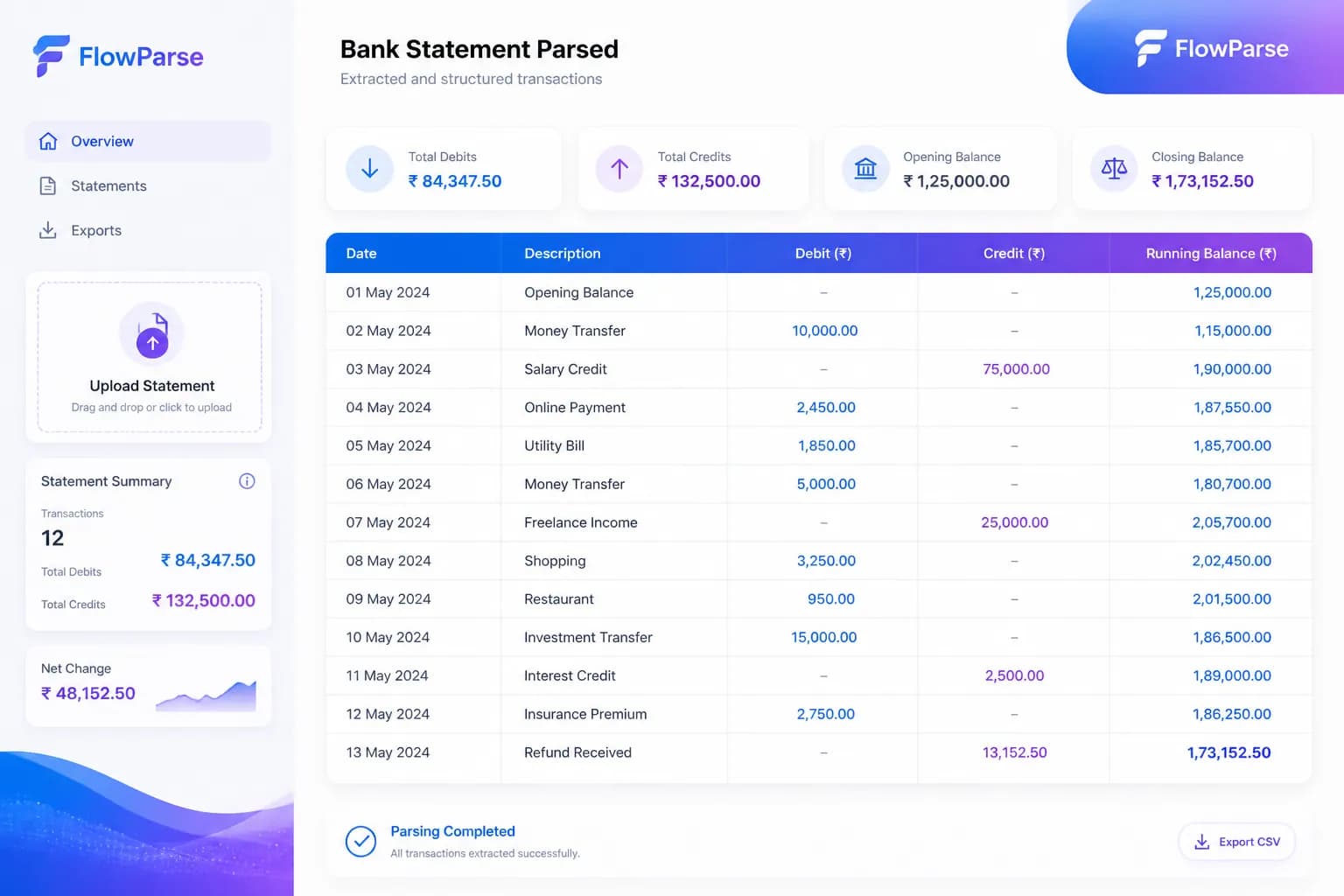
The heart of statement conversion is extracting each transaction as a structured row. A good extraction captures, for every transaction: date, description, debit, credit, running balance, and any reference number — with debits and credits in the correct, separate columns.
A signed-amount format (negative for debits) makes the output compatible with reconciliation tools and accounting imports, so the data drops straight into your workflow.
Multi-Page Statements
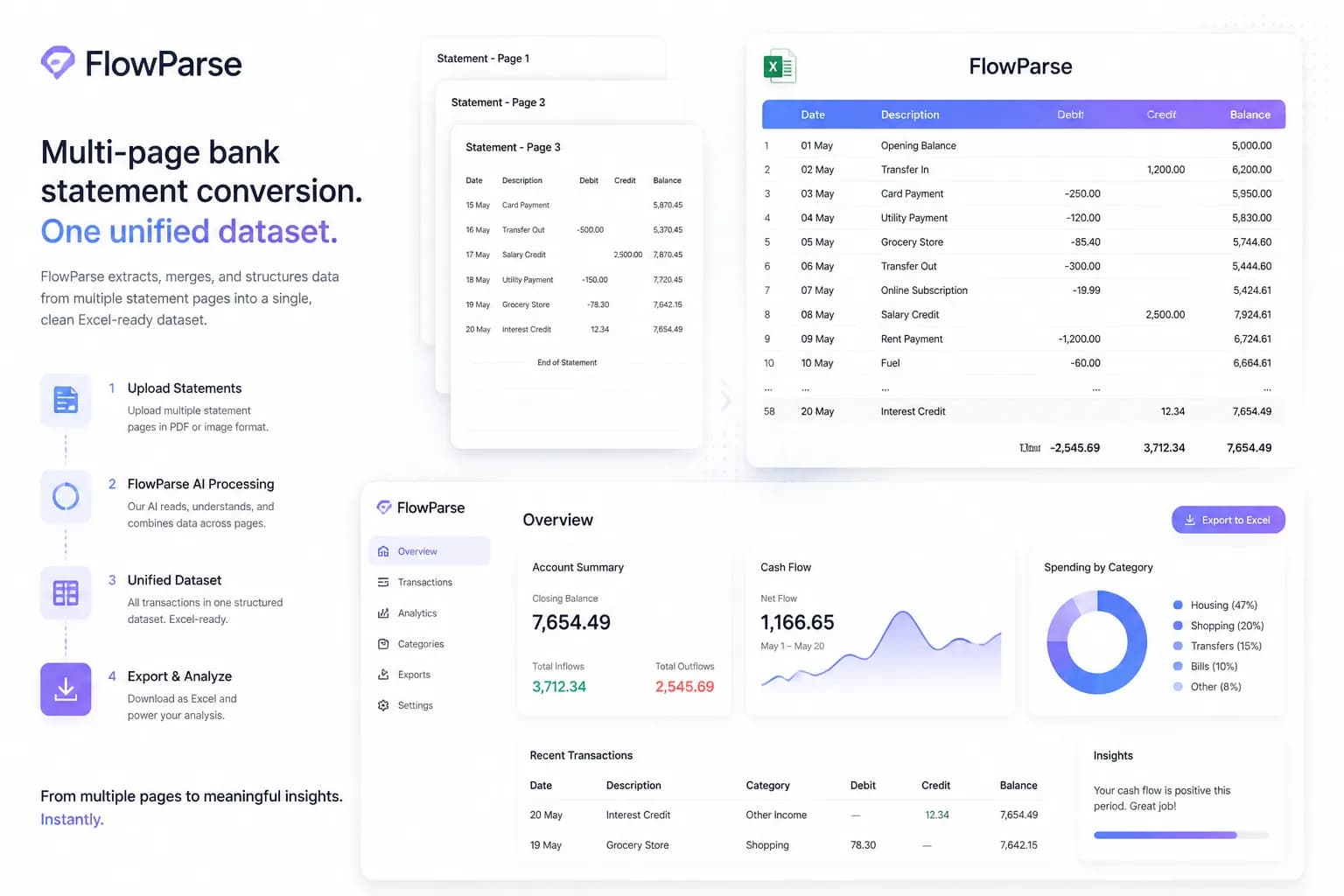
Real statements run to many pages, with the transaction table continuing across them and headers repeating on each page. Naive tools treat each page separately, which splits transactions, duplicates headers, and breaks the running balance.
AI extraction merges the continued tables into one unified dataset, dropping repeated headers and keeping the running balance continuous from the first page to the last — so a 20-page statement becomes a single clean Excel sheet.
Common Problems
Merged debit/credit columns
Copy-paste and basic import often combine separate debit and credit values into one.
Lost running balance
The balance column is easily dropped or misaligned, breaking reconciliation.
Scanned statements
Image-based statements need OCR before any extraction can happen.
Split multi-page rows
Transactions continued across pages get duplicated or split by naive tools.
Different bank layouts
Each bank formats statements differently, defeating fixed templates.
Reconciliation Workflows
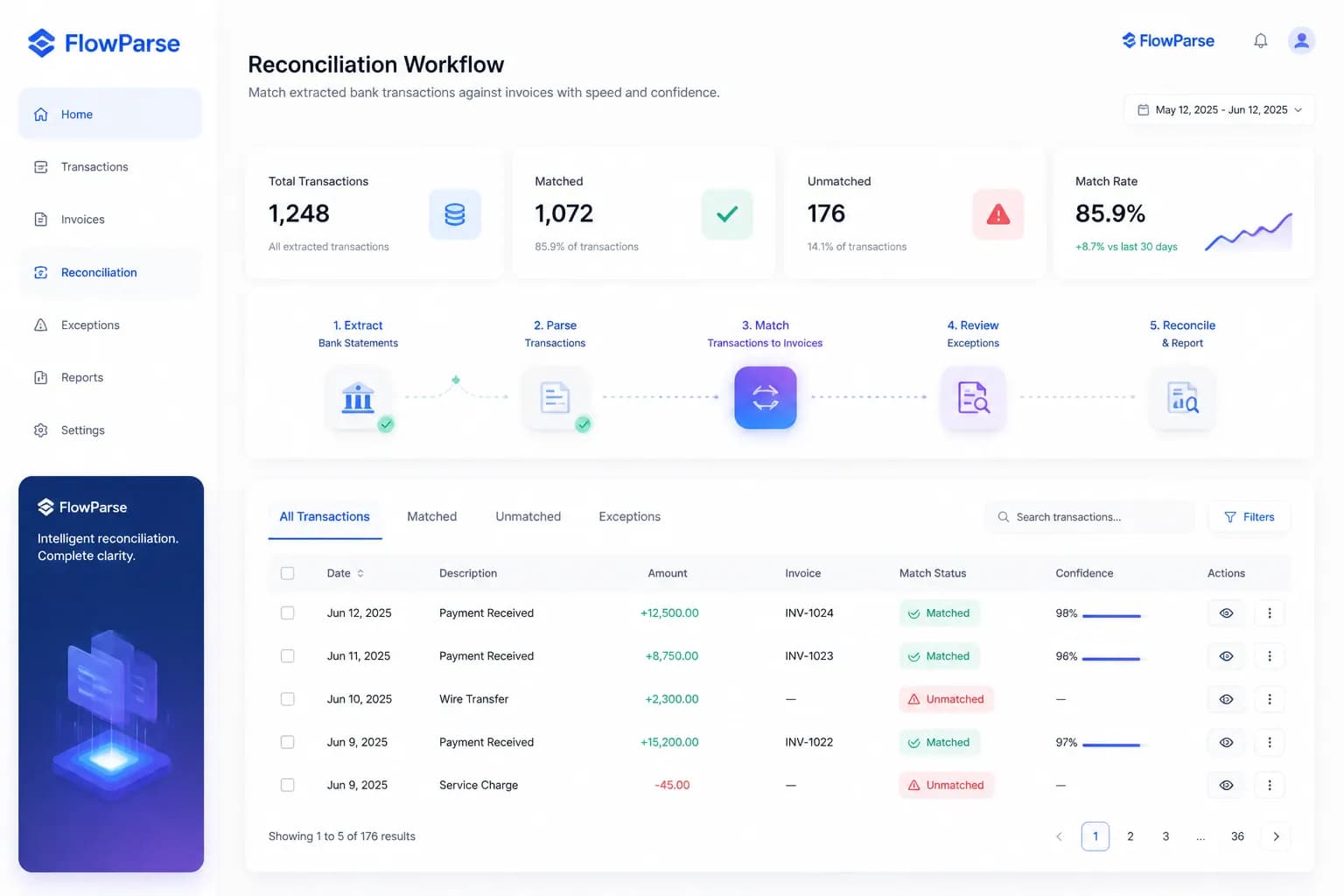
A clean Excel statement is the foundation of reconciliation. Once transactions are structured, you can match them against invoices and the ledger, flag unmatched items, and confirm that nothing is missing. A validation engine that checks the running balance gives you confidence the extracted data is complete before you start.
To go further and match transactions to invoices automatically, the reconciliation engine takes the structured statement and pairs each transaction with its corresponding invoice, turning conversion into a full reconciliation workflow.